
EDIT SCREENSHOTS ON MAC

One screenshot.
Your point, made clear.

Show the detail that matters. Turn a capture into useful feedback with arrows, text and annotations – right on your Mac, with the freedom to keep editing later.

Basic editing in Free · Advanced tools in Pro

macOS 26+ · English & German · In development

Snaprivo
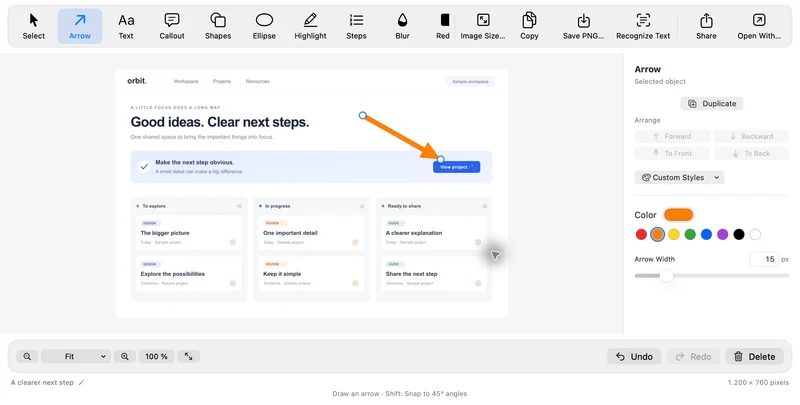
Real Snaprivo interface: a sample project board with an editable arrow in the native Mac editor
The real Mac app. Shown with a purpose-made sample project.
Annotations stay editableWindow, region or full screenPNG, JPEG and PDF

THREE SIMPLE STEPS

From a capture to a clear explanation.

  1. Choose your view.

    Capture a window, a region or your whole screen. You can also import an existing PNG, JPEG, TIFF or HEIC image and adjust the crop later.

  2. Guide the eye.

    Add a curved arrow, a short note or numbered steps. The object toolbar sits beside your selection, with controls for color, shape, line width and fill where applicable.

  3. Share your point.

    Copy the image to the clipboard, use native macOS sharing or export PNG, JPEG or PDF. Your editable project stays in the local library.

Feedback that points to the right place.

A button sits too far to the left. An error message needs more context. A colleague is looking for the next setting. Mark the relevant detail and add a short explanation, so the screenshot makes the next action easy to understand.

Arrows, callouts, shapes and numbered steps can be moved and adjusted. Use multiple selection, alignment and layer order to arrange several annotations into an explanation that is easy to follow.

Keep editing without starting over.

Snaprivo stores the original, crop, target resolution and annotations separately. You can move an arrow or correct a label after restarting the app. For the exported image, you can adjust the background, border, corner radius and shadow.

Covers help conceal sensitive details before sharing. Check the finished image and share a flattened PNG, JPEG or PDF. Editable project archives may include the unredacted original.

Privacy policy (German)

GOOD TO KNOW.

A few more answers.

Try the demo

Which editing tools are included in Free?

Free includes basic image tools, covers and the compact object toolbar. Pro adds tools such as magnification, spotlight, pen and additional drawing styles. The app is still in development.

Can I move an arrow after exporting?

Annotations remain editable in the saved Snaprivo project. Exported PNG, JPEG and PDF files are flattened output; their annotations are no longer separate Snaprivo objects.

Can I try the editor now?

The web demo lets you add an arrow, highlight, cover and step number to a sample image. It creates a PNG download in your browser. The public Mac app download is still to come.