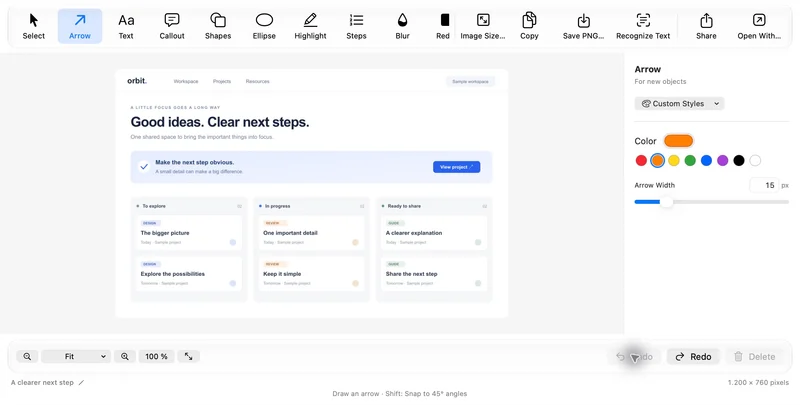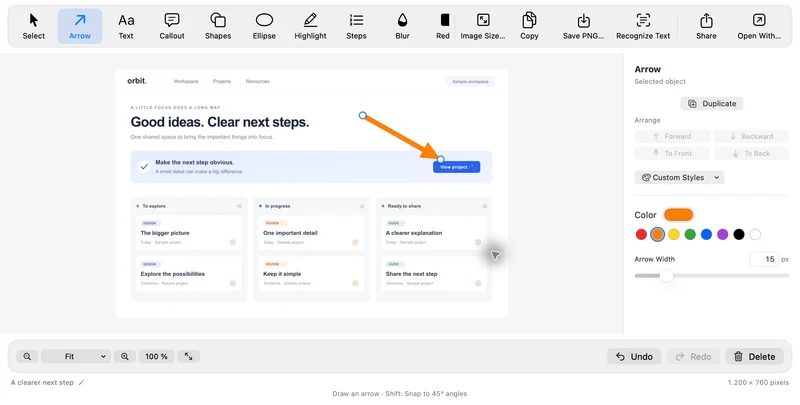
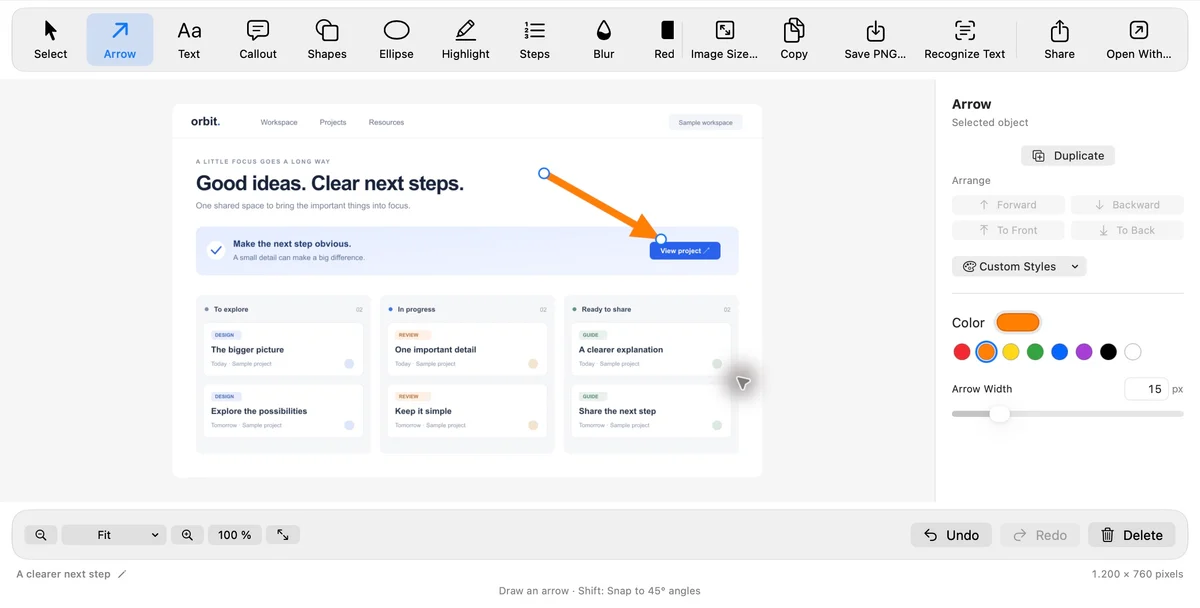
Capture exactly what you need.
Click a window, drag a region or capture your whole screen. You choose what makes it into the picture.
Capture a moment. Make your point. Pass it on. Turn a screenshot into a clear message with Snaprivo.
macOS 26+ · English & German · In development
LESS EXPLAINING. MORE SHOWING.
A detail in a design. A bug in a support ticket. The next step in a tutorial. Capture what you mean – and make it clear at a glance.
Click a window, drag a region or capture your whole screen. You choose what makes it into the picture.
Curved arrows, text, callouts and numbered steps guide the eye. Every annotation can be edited again later.
Copy your image, export as PNG, JPEG or PDF, or share with the native macOS share sheet.
RIGHT BY YOUR IMAGE. RIGHT IN YOUR FLOW.
Click an annotation and a compact toolbar appears beside it. Change its color, shape, line width or fill without looking away from your image. You can also open it with ⌘Enter.
Try it: choose a shape or color.
INCLUDED IN FREEInteractive illustration of the object toolbar. The Mac app offers more properties to match your selection.
YOUR IDEA. THREE SIMPLE STEPS.
Start from the menu bar or your keyboard shortcut. Choose a window or drag a region, adjust the selection and confirm your capture.
Window · Region · Screen · 3/5-second delayAdd an arrow. Highlight text. Cover sensitive details. Adjust colors, sizes and shapes directly on the image – and come back to edit them anytime.
Arrows · Callouts · Highlights · Steps · RedactionCopy your image or share it through macOS. For a longer process, arrange several screenshots into a guide and export as PDF or Markdown.
Clipboard · Image export · PDF · Markdown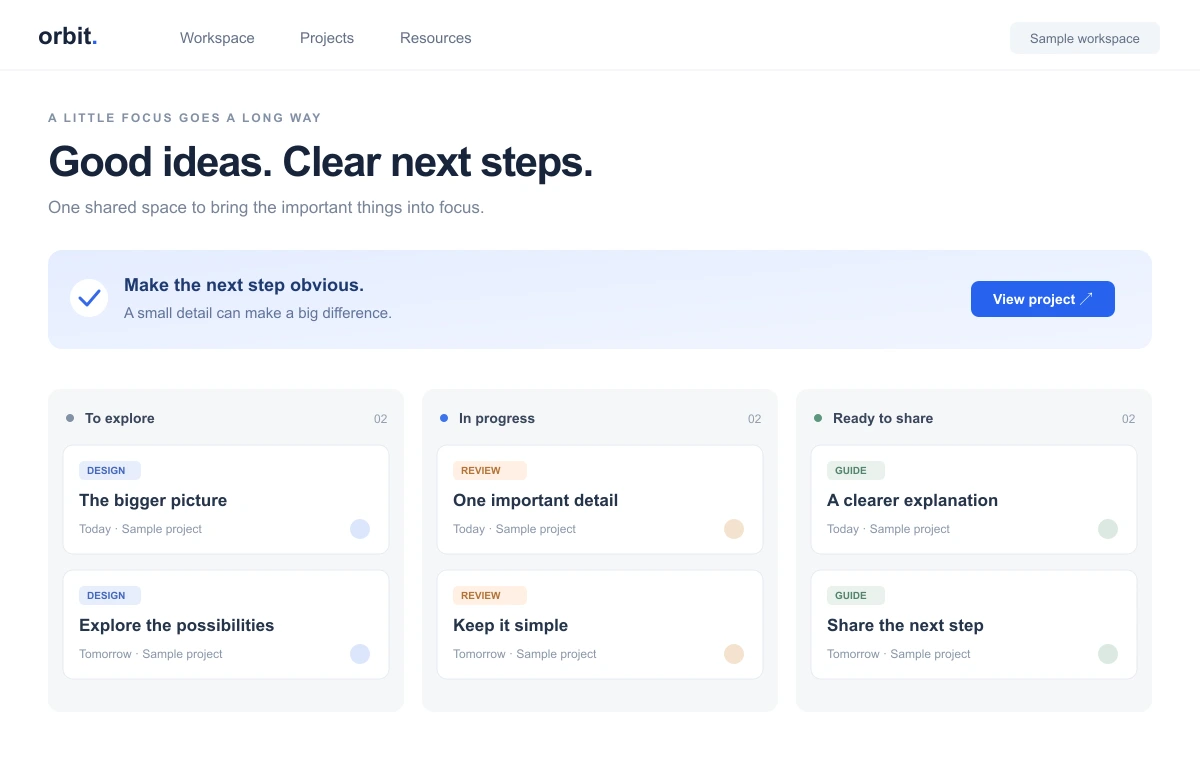
MORE THAN A QUICK CAPTURE.
From a quick screenshot to a detailed guide. Essential tools are included in Free; OCR, advanced tools, guides and video are part of Pro.
Extract and copy text from your images. Review suggestions for sensitive details and turn selected matches into redactions. Text recognition runs locally with Apple Vision.
Text recognitionAutosaved images with editable annotations, favorites, tags and collections. Optional local OCR search also finds the words inside your images.
Record a region, window or screen, with optional audio and click highlights. Trim your recording and export an MP4, or turn a short clip into a GIF.
Screen recordingChoose your images, arrange the steps and add captions. Export an A4 PDF or a Markdown folder with images.
Create guidesScroll yourself, add overlapping sections and check the preview. Snaprivo stitches them into a long screenshot you can edit.
Enlarge details in place or in an offset magnifier. Focus attention with Spotlight, draw with the pen and choose precise, hand-drawn, sketch or marker styles.
Edit screenshotsWindow, region and full screen; menu bar and customizable global shortcuts; optional cursor; no delay or 3/5 seconds; optional automatic copy to clipboard.
Curved arrows, text, callouts, six shape variants, ellipses, rectangular and freehand highlights, numbered or alphabetical steps, blur and opaque redaction. A compact toolbar beside your selection, magnifier, Spotlight and pen. Four drawing styles, saved tool styles, multiple selection, alignment, equal spacing and snapping. Layer ordering, duplicate and undo/redo.
Nondestructive crop, output resolution, zoom and pan. PNG, JPEG, TIFF and HEIC import. PNG/JPEG/PDF output with optional background, padding, rounded corners and shadow. Clipboard, macOS sharing, Open With, pinning, color picker, inserted images and an expandable canvas.
Automatically saved editable projects; image preview strip for quick switching; search, favorites, tags, collections and trash. Optional local image text search. Quick preview after capture, project import/export, a combined backup for images, videos and guides, and a configurable storage location. Editable project archives may include the original.
Screen recording with optional system audio and microphone, countdown, internal preview, nondestructive trimming and MP4 output. Silent GIF export up to 15 seconds and optional click highlights. Separate video library and backup. Guides with ordered steps, captions, PDF preview, A4 PDF, Markdown and editable .snaprivoguide export.
YOUR CONTENT STAYS WITH YOU.
Captures, projects and text recognition are processed locally. Snaprivo currently includes no analytics or cloud services. You choose what to pass on through export and sharing actions.
Privacy policy (German)LESS IMAGINING. MORE TRYING.
Pick a tool and see how a small annotation can change the whole explanation.
Choose an annotation and a color. Save your result as a PNG.
Simplified browser demo with sample content. The Mac app lets you edit annotations freely and offers more tools.
YOUR MAC DESERVES GOOD TOOLS.
Snaprivo brings capturing, explaining and sharing together. Built for macOS 26 and later. In English and German.
Snaprivo Free includes unlimited screenshots and essential editing tools. Pro adds text recognition, guides, video and more with a one-time purchase: planned at €29.99 for launch, then €39.99. No subscription. The public download is coming; your local App Store price applies.
Free includes unlimited screenshots, essential image tools, the compact object toolbar, redaction, quick preview, pinning and a local library with title search and favorites. Pro adds text recognition, scrolling capture, magnifier, Spotlight, pen and additional drawing styles, plus tags, collections, guides and video. Pro is planned as a one-time purchase with no subscription.
With Pro, you can review local suggestions for details such as email addresses, phone numbers and IBAN-like numbers, then redact selected matches. Detection can miss information. Always review your image before sharing and export a flattened image, rather than an editable project containing the original.
Snaprivo is a native screenshot and screen recording app for Mac. Edit captures, recognize text locally, organize projects and turn several screenshots into a PDF or Markdown guide.
Snaprivo requires macOS 26 or later and is being developed for Apple silicon and Intel Macs. Versions for Windows, Linux, iPhone and iPad are not currently planned.
Not publicly yet. You can try the web demo while we prepare for release. Snaprivo will offer a free version and Pro as a one-time purchase, with no subscription.
The app processes images, projects and text recognition locally on your Mac. It currently includes no analytics or cloud services. Content is only passed to your chosen destination when you explicitly share or export. If you choose a cloud-synced storage folder, that provider's sync settings apply.
Yes. Local projects store the original, crop, output resolution and annotations separately. Arrows, text and shapes remain editable after restarting. PNG, JPEG and PDF are flattened outputs. Editable project archives and backups may contain the unredacted original; share flattened image output for protected content.
Select a region, scroll down yourself and add overlapping sections. At least one-third overlap is required. Check the combined image in the preview. Snaprivo supports up to 50 sections, 20,000 pixels in height and 40 megapixels. Automatic scrolling is not offered.
Yes. Record a region, window or screen, optionally with system audio and microphone. Trim the beginning and end in the internal preview and export as MP4. You can also export clips up to 15 seconds as animated GIFs without sound.
macOS requests screen access when you first start a capture. Microphone access is requested only when you enable it for a video recording. Manage these permissions in System Settings. The app uses the macOS App Sandbox.